Runtime Workman
Employee Self-Service App for Attendance, Payroll, Leave and More
Runtime Workman – Your Employees’ Everyday HR App
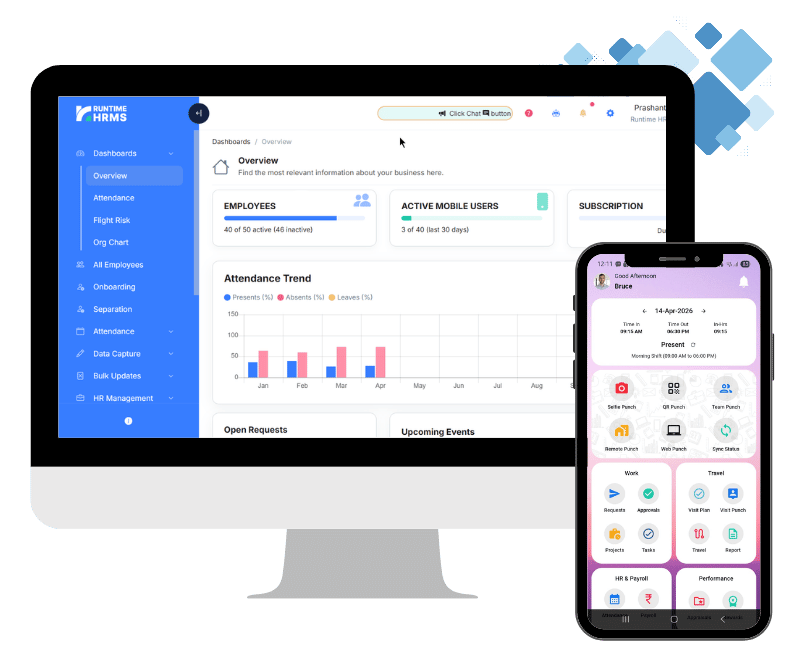
Every month the same questions come in: where is my payslip, how many leaves are left, can you approve this request? Runtime Workman puts attendance, leave balance, payslips, Form 16, tax declarations and requests on each employee’s phone, so your HR or payroll team answers far fewer of them.
- No credit card required
- Free Onboarding
- 7-days free trial
- Signup to Payroll in 30 mins

Why HR Teams and Employees Both Rely on Runtime Workman
A lot of what HR does in a given week isn’t strategic – it’s answering the same request for the fifth time, forwarding a payslip someone already has access to, chasing an approval that’s been sitting in an inbox for three days. Runtime Workman moves that routine work off HR’s desk and puts it directly in employees’ hands, without anyone losing visibility into what’s happening.

Less Dependency on HR for Routine Tasks
Attendance, leave, payslips, and requests are things employees can check and act on themselves, instead of routing every small question through HR.

Real-Time Everything
A punch, a leave request, or an approval decision reflects instantly in the app – nobody’s waiting until end-of-day for someone to update a spreadsheet.

Built Around What Employees Ask For
Every feature in Workman maps to something employees genuinely ask HR about – leave balance, payslips, shift timing, approval status – not features nobody uses.
Mark Attendance in Seconds – QR Scan or Face Recognition
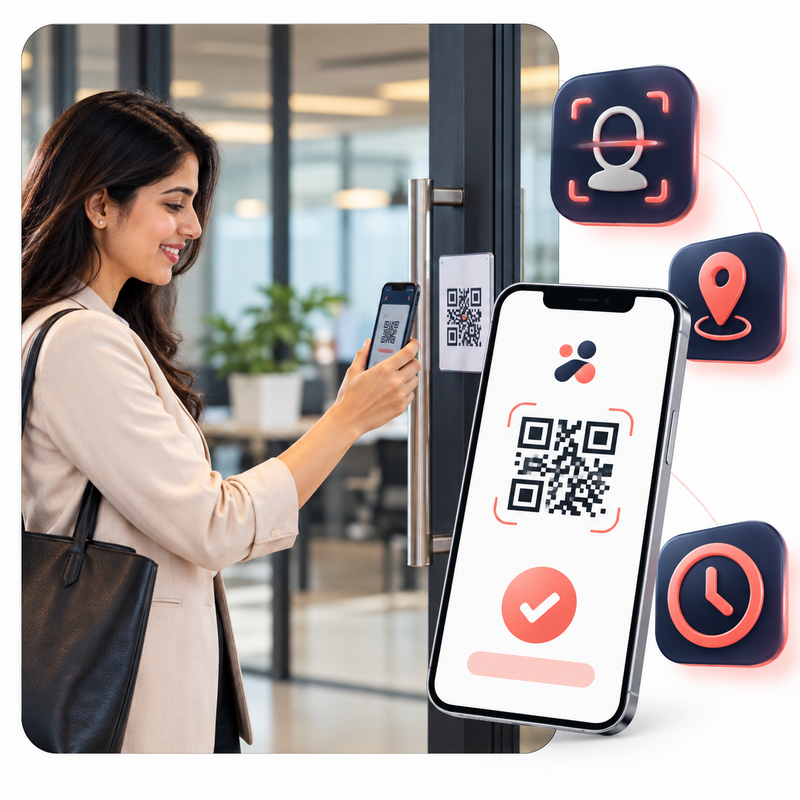
Attendance shouldn’t be the most complicated part of anyone’s morning. Runtime Workman gives employees two ways to punch in, and neither involves a physical card, a fingerprint sensor, or standing in a line. A QR-based check-in takes a scan and a couple of seconds; selfie-based attendance verifies identity through face recognition, right from the same phone in someone’s pocket. Geo-tagging and geo-fencing sit underneath both, so attendance carries location context when a business needs that layer of control.
- QR-based check-in and check-out, recorded and reflected instantly
- Selfie-based attendance with face recognition as a touchless alternative
- Geo-tagging and geo-fencing for location-verified punches
- Real-time attendance updates visible the moment a punch is made
Track Attendance, Leave Balance and Shift Details in One App
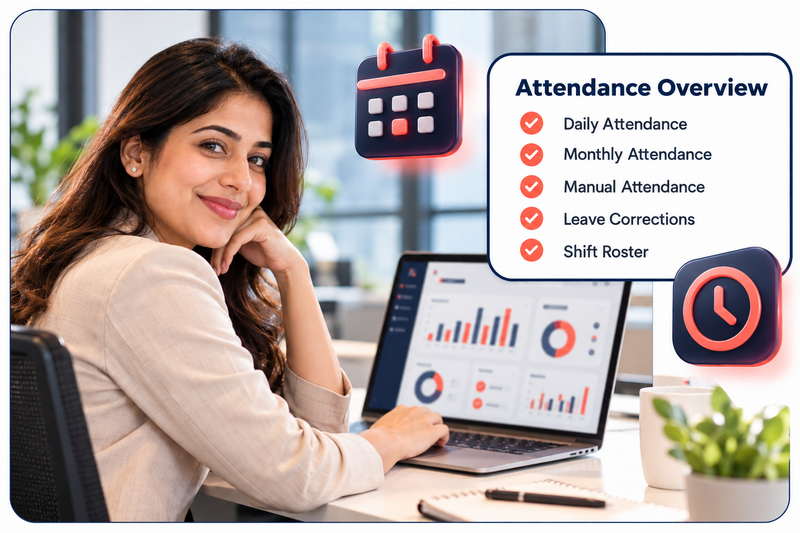
Knowing where you stand shouldn’t require a message to HR. Employees can open the app and see their attendance for the day or the month, their working hours, shift timing, and whether they’ve clocked in late or left early – the same information HR would otherwise have to look up and send over manually. Leave balances and holiday calendars sit right alongside it, so applying for leave doesn’t mean guessing how many days are actually left.
- Daily and monthly attendance at a glance
- Time-in, time-out, and total working hours
- Shift timings, late arrivals, and early departures
- Leave balance and holiday calendar visibility
- Apply for leave and track request status without leaving the app
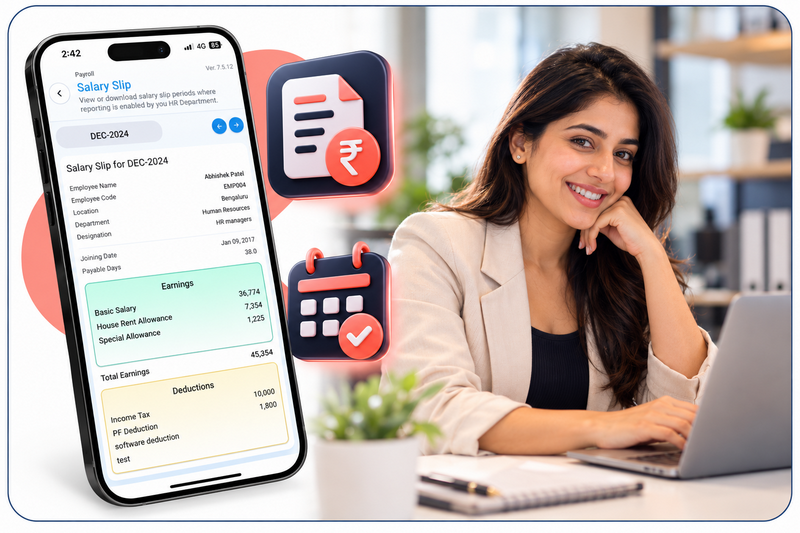
Access Payslips, Salary History and Form 16 From Your Phone
Payroll questions are some of the most sensitive ones employees have, and also some of the most repetitive for HR to field. Runtime Workman gives employees direct, private access to their own salary information – current and past payslips, a full breakdown of earnings and deductions, income tax computation, and Form 16 for filing returns – all without a request ticket or an awkward conversation. That last part carries real weight beyond convenience.
Under Section 203 of the Income Tax Act, employers are legally required to issue Form 16 to every employee by June 15 of the following year, with a daily penalty for missing that deadline. Having it available in the app the moment it’s generated means employees aren’t left waiting on an email that may or may not arrive on time.
- Current and past salary structures and payslips
- Detailed breakdown of earnings and deductions
- Income tax computation, visible year to year
- Form 16 available directly for tax filing
Get started for free
Signup now to start your 7-day free trial, no credit card required.
Enjoy fully featured Payroll & HR tools and eliminate the hassle of payroll every month.
Track Daily Visits and Field Travel From the Field, Not After It
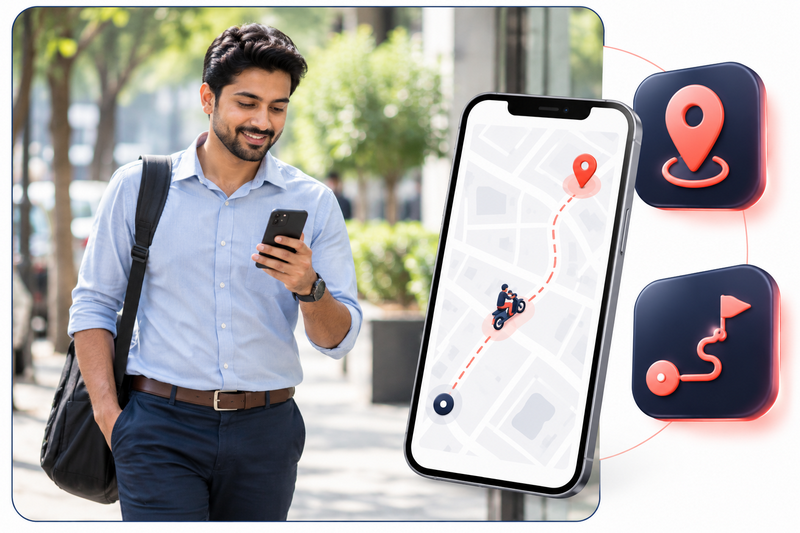
Field employees don’t sit at a desk, so their attendance and activity tracking shouldn’t assume they do. Workman lets field staff plan their day, mark visit punches at each client stop, and run live travel tracking so their movement is visible as it happens, not reconstructed from memory at the end of the week. Managers get the same visibility from their side, with reports that show distance covered and visit patterns over time.
- Daily visit planning built into the app
- Quick punch-in at each client or site visit
- Live travel tracking with route visibility
- Distance and travel reports for manager review
Raise Requests and Get Approvals Without Emails or Paperwork
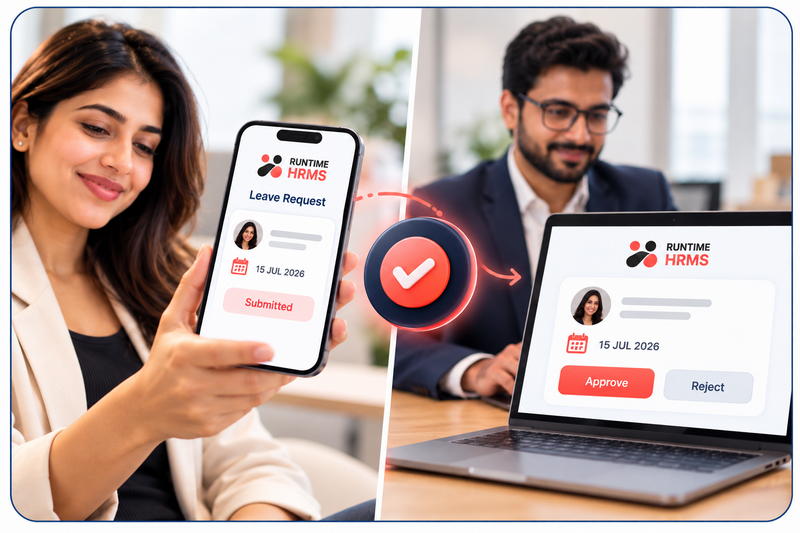
A leave request, a missed punch correction, a comp-off – none of these should need a forwarded email chain to get resolved. Employees raise the request directly in Workman; managers review and approve it from the same app, and the decision reflects back in real time. No one’s refreshing their inbox wondering if anyone’s seen it yet.
- Raise requests directly from the app – leave, missed punch, comp-off, and more
- Managers review and approve without leaving Workman
- Approval status updates in real time
- Employees get instant visibility the moment a decision is made
Submit Investment Declarations and Tax Proofs Digitally
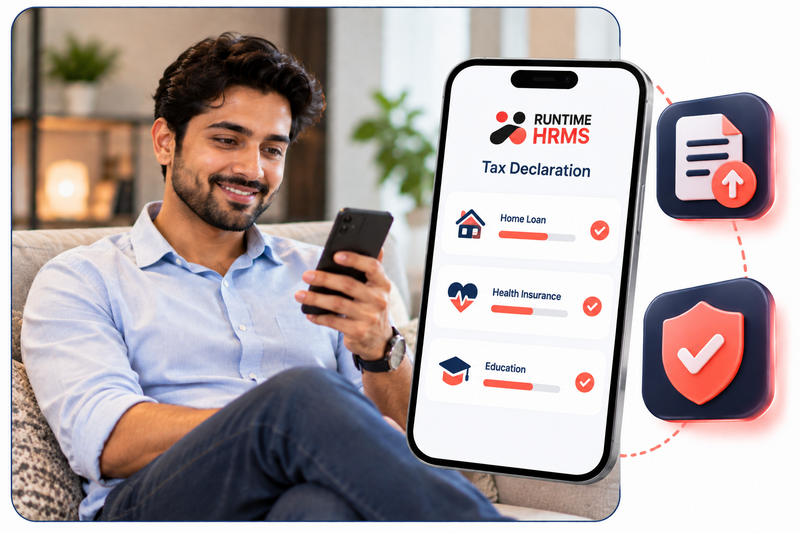
Tax declaration season tends to turn into a paperwork bottleneck for HR every single year – physical proofs, scanned documents in the wrong format, a spreadsheet someone’s manually reconciling against payroll. Runtime Workman lets HR open a defined submission window, and employees submit their investment declarations and upload proof documents straight from their phone, ready for review without a single physical file changing hands.
- HR-defined proof submission window
- Employees submit investment declarations digitally
- Supporting documents uploaded directly through the app
- Accurate tax and TDS calculation based on verified submissions
- Fewer manual follow-ups chasing missing or incomplete proofs
Our Esteemed Clients










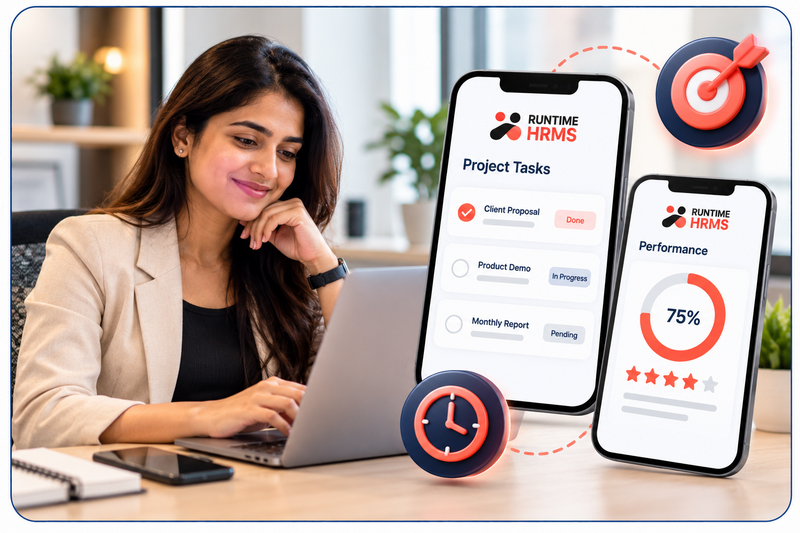
View Projects, Timesheets and Performance Reviews On the Go
Project status and performance reviews tend to live in two different systems that nobody checks on their phone. Workman puts both in one place – employees can see what they’re assigned to, log time against it, and track their own performance journey from goals through to formal reviews, without switching between a project tool and an HR portal.
- View assigned projects and tasks, track status and log timesheet entries
- Add project updates and see who else is on the team
- Set and track goals, record achievements
- Access performance appraisals and team performance visibility
Recognition, Rewards and Team Celebrations in One Place
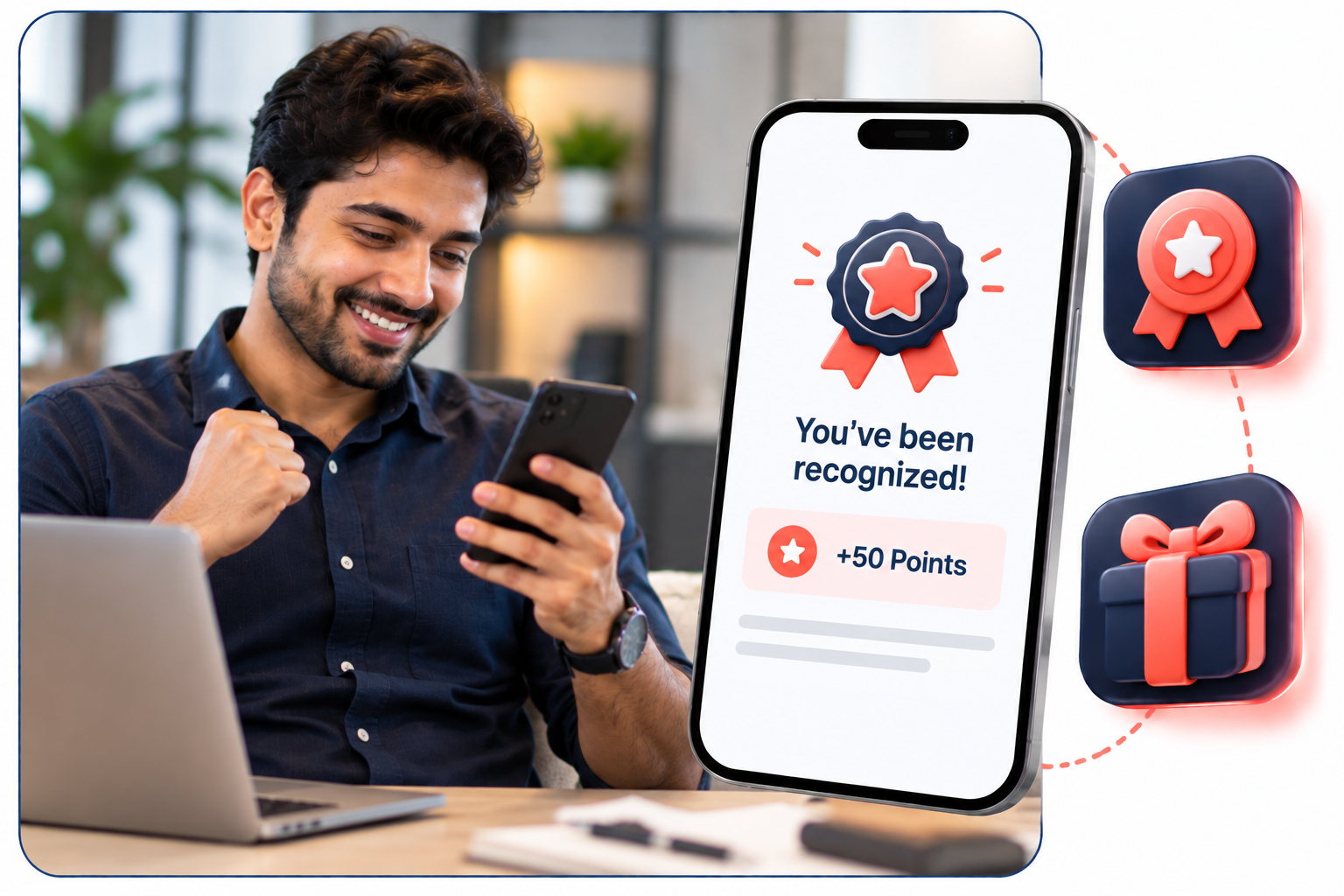
Culture doesn’t run on email announcements that half the team scrolls past. The Workman Wall surfaces birthdays, work anniversaries, and team milestones where people actually are – on their phone – and pairs it with a rewards system where colleagues can badge each other, earn Cheers Points, and redeem them for real gift cards and experiences.
- Birthdays, work anniversaries, and team milestones on the Wall
- Earn badges and Cheers Points for recognized contributions
- Give recognition to colleagues directly through the app
- Redeem points across a wide range of gift cards and rewards
Services & Features
India’s Best Employee Self-Service App with Features to Save Time & Effort
01
Geo-Tagging & Geo-Fencing
Add location-based verification to attendance punches, so a check-in reflects where an employee actually was, not just when.
02
Missed Punch & Comp-Off Requests
Correct a missed punch or request comp-off directly from the app instead of emailing HR to fix it manually.
03
Income Tax Computation
See a running computation of tax liability based on declared investments and salary structure, updated as the year progresses.
04
360° Feedback
Participate in feedback that goes beyond a single manager’s view, as part of a structured performance review cycle.
05
Badges & Cheers Points
Recognize a colleague’s contribution instantly with a badge or points, visible to the team, not just logged quietly somewhere.
06
Live Travel Tracking
Field managers see travel activity as it happens, with route visibility rather than a summary pieced together after the fact.
Get started for free
Signup now to start your 7-day free trial, no credit card required.
Enjoy fully featured Payroll & HR tools and eliminate the hassle of payroll every month.
Frequently Asked Questions
Got Questions?
We’ve Got Answers.
Everything you need to know about getting started, subscriptions, payment plans and more.
How to do selfie punch?
You must ON the option for selfie punch.
- Go to Setup > Employee Self Service > Approvals > ON the selfie punch option & if you want that punch should be done in office location area only so ON the Allow Punch from employee location only.
- Now Go to All employee > Select the employee whom you want the selfie punch access and click on permission and ON the selfie punch.
- Note: – For all Employee you want to give permission in Bulk, then Go to Bulk Updates > Options > Select the Location, Cost centre, Department, etc ON, so in one click all employees have access to use Selfie punch.
- Now Go to Workman application for registration the face, Click on Profile > Face Registration > Click on take selfie and read the instruction and submit the face.
How to check employee using workman application?
- We can see using two options :
IN BULK: If we want to see Whether how many employees’ login in mobile application, then Go to Dashboard > Overview > There you can see “Active mobile User”. - Individual: Go to All Employees > Select any Employee record >Login &Access >There you can see the “Login Session”.
How to submit a leave request?
Go to Workman Application > Click on Request > Leave request > Select date, leave type and write your concern in comment section and simply submit.
Can employees download their Form 16 and payslips from the app?
Yes. Current and past payslips, salary history, and Form 16 are all available directly in the app once generated, without needing to request them from HR.
Is Runtime Workman included with Runtime HRMS, or is it a separate cost?
Runtime Workman is included for every employee at a company using Runtime HRMS, free to download on Google Play and the App Store.
What is Runtime Workman?
Runtime Workman is an employee self-service mobile app from Runtime HRMS, giving employees direct access to attendance, leave, payroll, requests, performance, and rewards from their phone – available on both Android and iOS.